GOLD V2 mode
Mode setup#
In the indicator settings, select GOLD V2 mode.
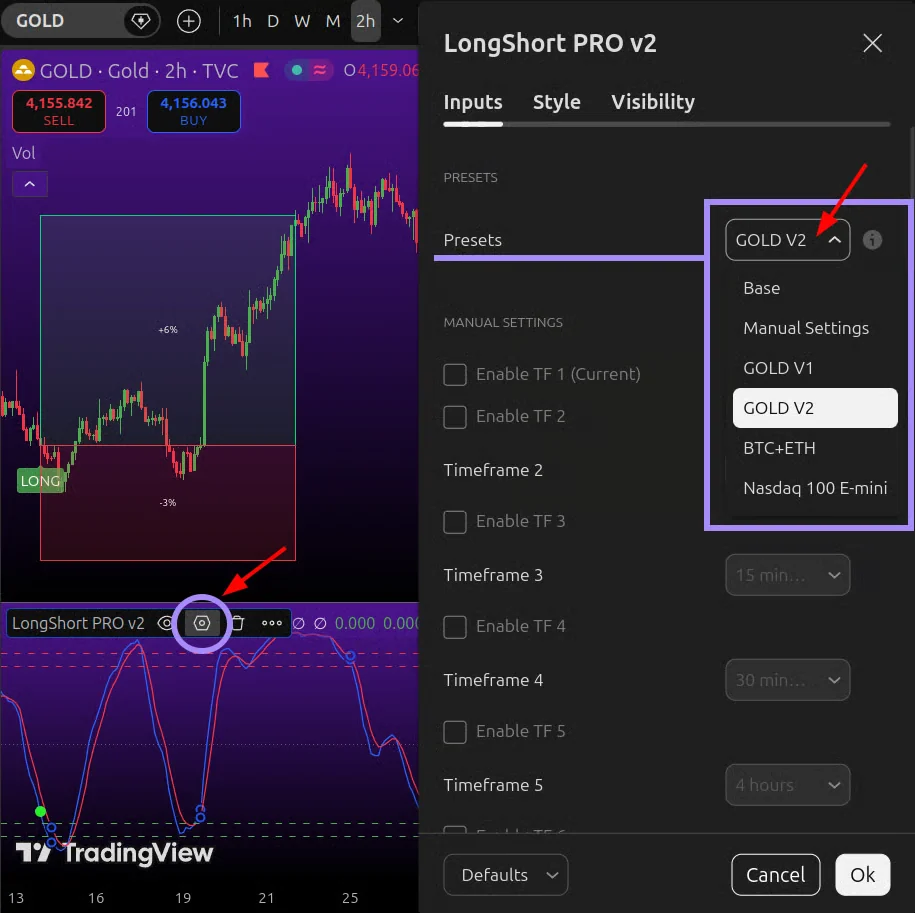
Open the Gold asset in TradingView on a standard candlestick chart and select a timeframe from the supported list: 30s, 45s, 1m, 2m, 3m, 5m, 15m, 30m, 45m, 1h, 2h, 3h, 4h.
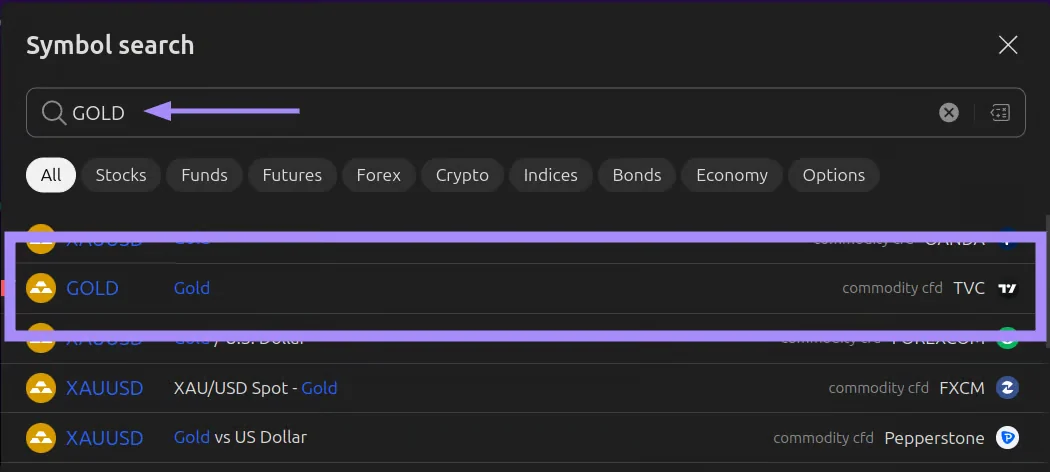
You can run the indicator on any exchange chart: it will adapt to the available data. However, testing was done on specific sources: TVC, MNQ, and Binance spot. The strategies perform most accurately on these, so it's best to choose them.
For GOLD V2 mode, "GOLD cfd TVC" is the preferred choice.
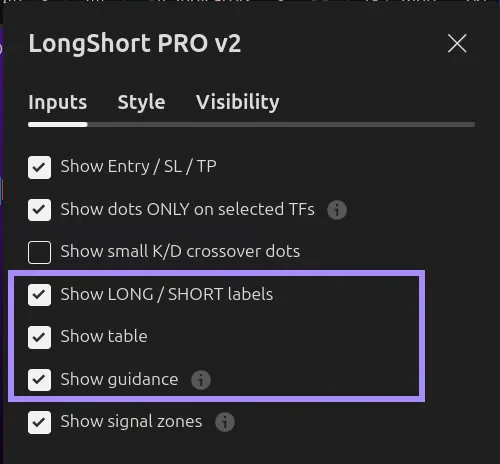
Keep Show LONG / SHORT labels, Show table, and Show guidance enabled.
Labels on the price chart#
LONG means buy, SHORT means sell. Without a plus – the standard class. One plus (+) – an additional quality class. Two pluses (++) – a stricter subgroup of +.
| Label | LONG | SHORT | What it means |
|---|---|---|---|
| LONG / SHORT | 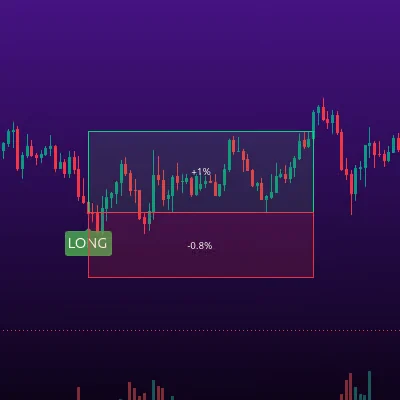 | 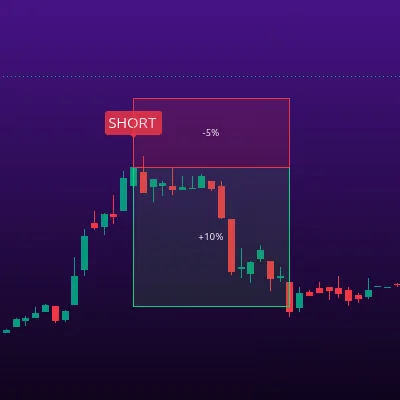 | Standard confirmed signal |
| LONG+ / SHORT+ | 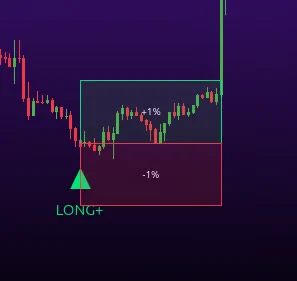 | 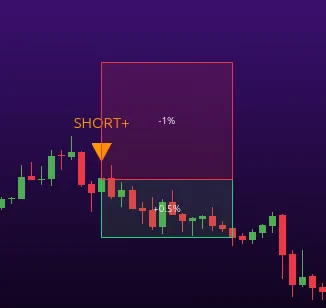 | A signal with additional quality markers, shown as a triangle |
| LONG++ / SHORT++ | 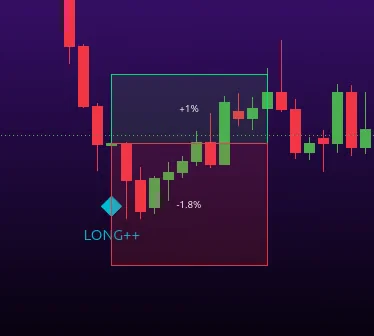 | 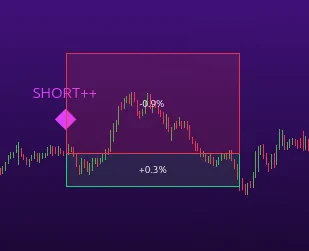 | A higher internal class, shown as a diamond |
Pluses don't change the position size, SL, or TP, and don't guarantee profit. Only one highest class is shown per trade. LONG++ is available on 30s, 45s, and 3m. SHORT++ is not used in V2; on other timeframes, the set of classes differs.
The class is assigned when a signal appears. Plus-rated signals may occur less often. Where they are available:
| GOLD V2 timeframe | LONG+ | LONG++ | SHORT+ | SHORT++ |
|---|---|---|---|---|
| 30s, 45s, 3m | Yes | Yes | Yes | No |
| 2m | No | No | Yes | No |
| 1m, 5m, 15m, 30m, 45m, 1h, 3h, 4h | Yes | No | No | No |
| 2h | No | No | No | No |
Only the highest class is shown on a single trade: LONG++ is one signal, not three. Pluses don't create a separate trade, don't change its SL or TP, and don't guarantee profit.
Plus-rated signals only exist where they are provided by the profile and direction. Base, Manual Settings, BTC+ETH, and Nasdaq 100 E-mini modes don't have these classes.
Entry, SL, and TP zones#
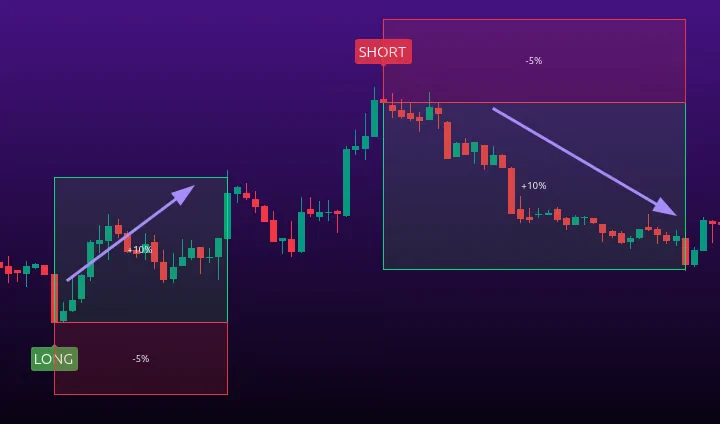
If the mode tracks trades, a green zone up to the target and a red zone down to the stop appear on the chart. For LONG, the target is above the entry and the stop is below; for SHORT, it's the reverse.
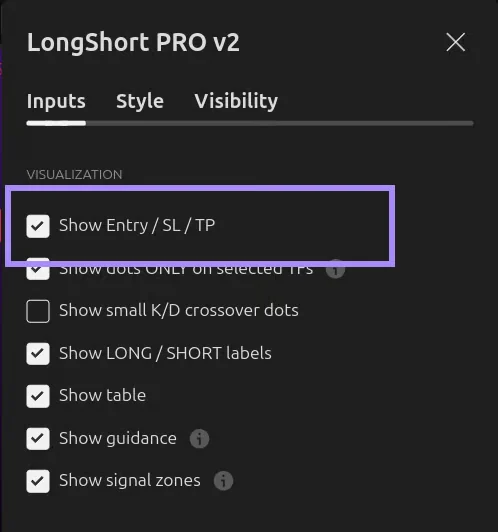
To see the zones on the chart, also enable Show Entry / SL / TP. This checkbox only controls the visual display on the chart and does not disable position tracking.
On timeframes above 4h, GOLD mode switches to Base mode: signals and the timeframe table remain, but SL and TP levels are not calculated.
GOLD V2 feature#
Unlike GOLD V1, where the Stop Loss is usually larger than the Take Profit, in GOLD V2 the target Take Profit is equal to or larger than the Stop Loss.
| Timeframe | Target Take Profit |
|---|---|
| 30 seconds | LONG 1–2R, SHORT 2R |
| 45 seconds | LONG 1–2R, SHORT 2R |
| 1 minute | LONG 1–2R, SHORT 2R |
| 2 minutes | LONG 1–2R, SHORT 2R |
| 3 minutes | LONG 1–2R, SHORT 2R |
| 5 minutes | LONG 1R, SHORT 1.25R |
| 15 minutes | LONG and SHORT 1R |
| 30 minutes | LONG 1R |
| 45 minutes | LONG and SHORT 1R |
| 1 hour | LONG and SHORT 1.25R |
| 2 hours | LONG and SHORT 1–2R |
| 3 hours | LONG and SHORT 1–2R |
| 4 hours | LONG 1.25R |
1R means a target at the distance of one stop, 2R – two stops. A flexible 1–2R is fixed for a specific trade. The ratio refers to the initial levels before costs; a time-based exit may produce a different actual result.
Alerts#
Once you have set up your strategy, you can enable alerts for signals appearing on the chart with your settings.
Set up the chart according to the instructions or your personal strategy.
Next to the indicator name, click the three dots.
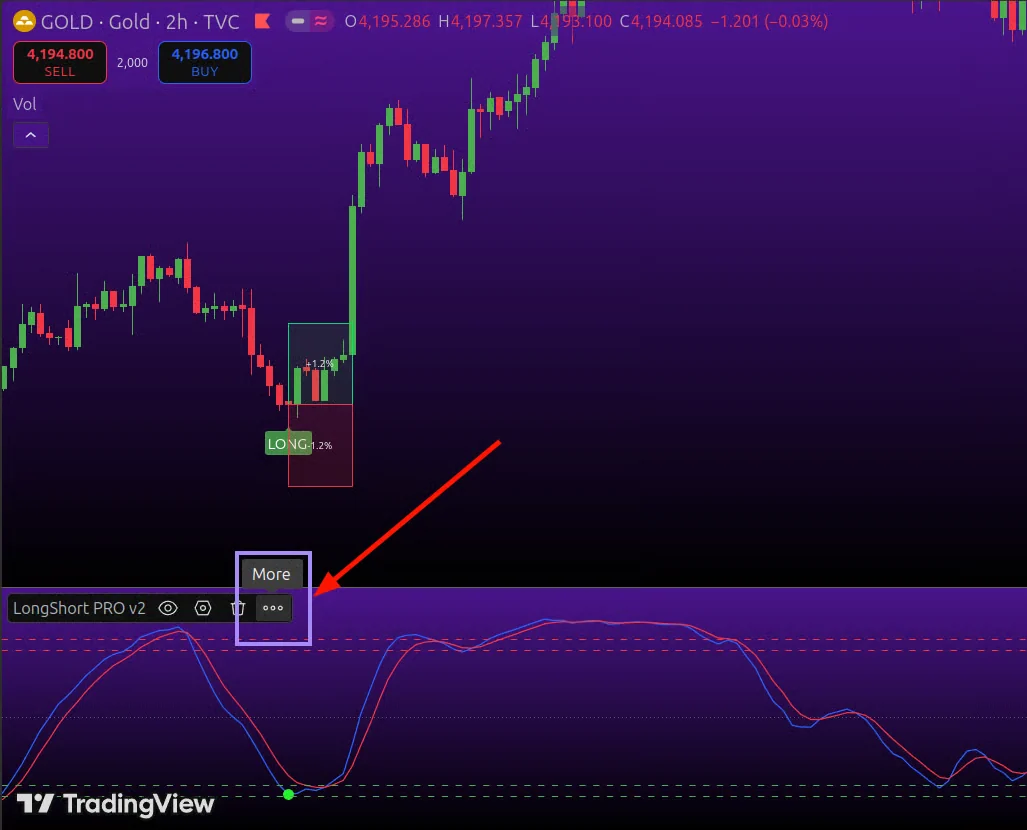
Select "Add alert on LongShort PRO...".
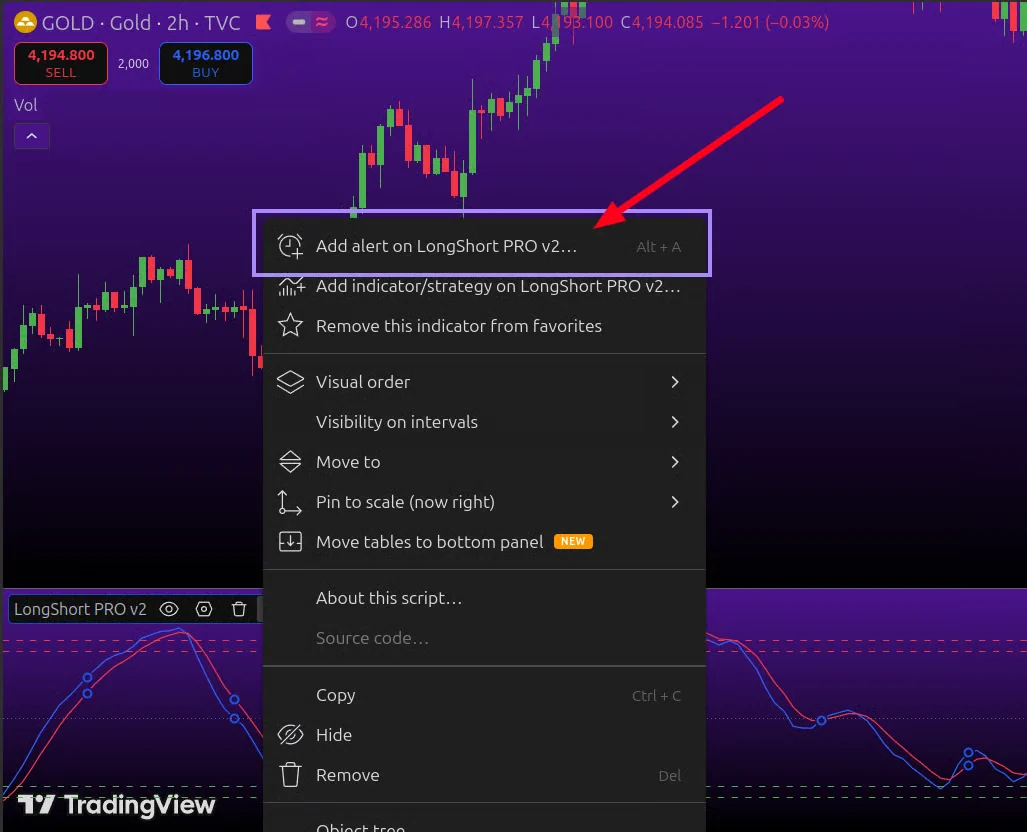
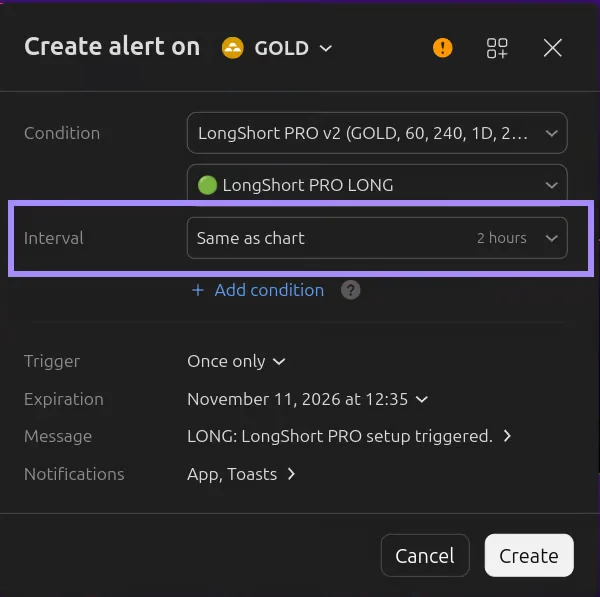
Next, select which signal you want to get notifications for – LONG or SHORT. Don't change the interval: leave it the same as the chart.
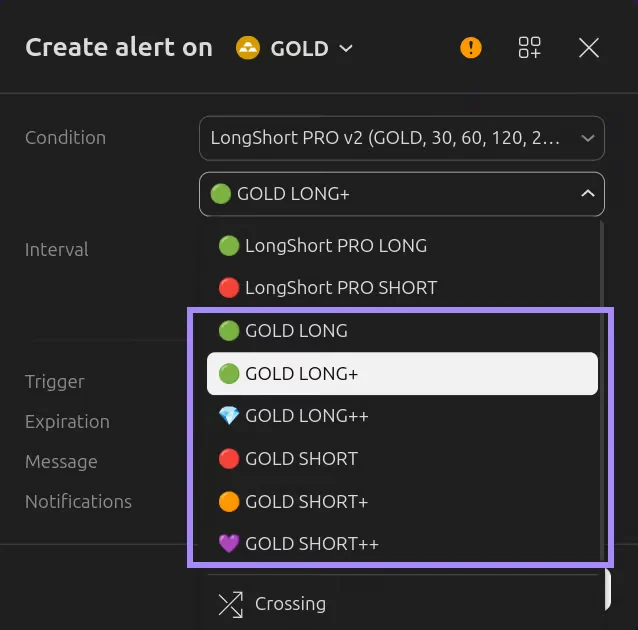
Each GOLD class is a separate event. A GOLD LONG alert does not include LONG+ or LONG++. To get notifications for all classes of a direction, create an alert for each one. An event appearing in the list does not mean the class is available on every timeframe.
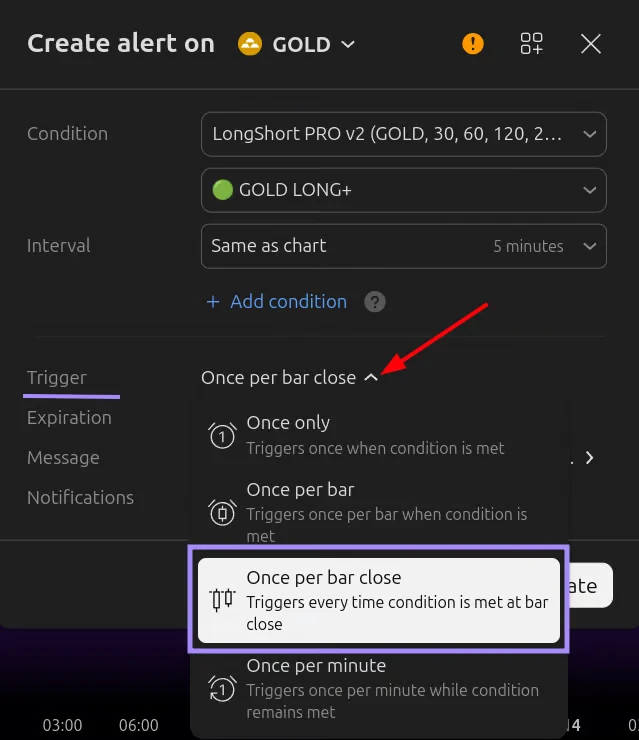
Change the "Trigger" field to "Once per bar close". Then click "Create".
You can track active alerts on the Alerts tab in the top right corner of TradingView.
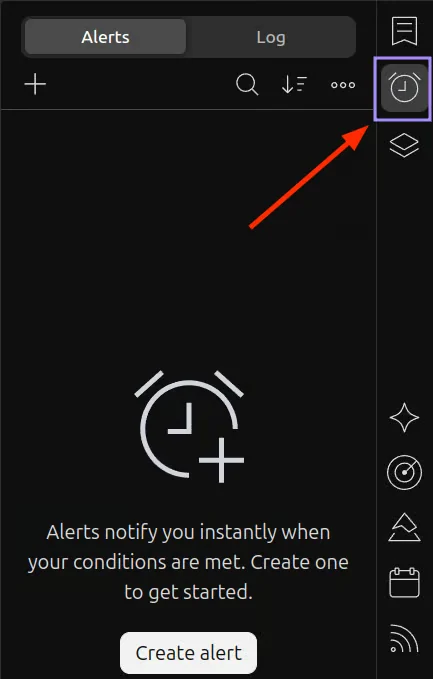
After changing settings, timeframe, or indicator version, recreate the alert: TradingView uses the parameters saved when it was created. Hiding drawings on the chart does not disable existing alerts.
Official TradingView help on alerts:
https://www.tradingview.com/support/solutions/43000595315-how-to-set-up-alerts/
In the free TradingView subscription, you can create an alert only once. This is a TradingView limitation, not an indicator limitation. If alerts are important to you, consider upgrading your TradingView subscription.