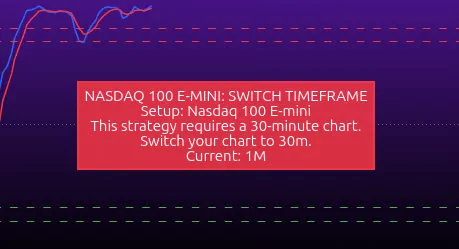
Nasdaq 100 E-mini mode
This mode displays LONG signals only.
Step 1 – open the MNQ chart#
Open the MNQ asset in TradingView on a standard candlestick chart and select the 30-minute timeframe.
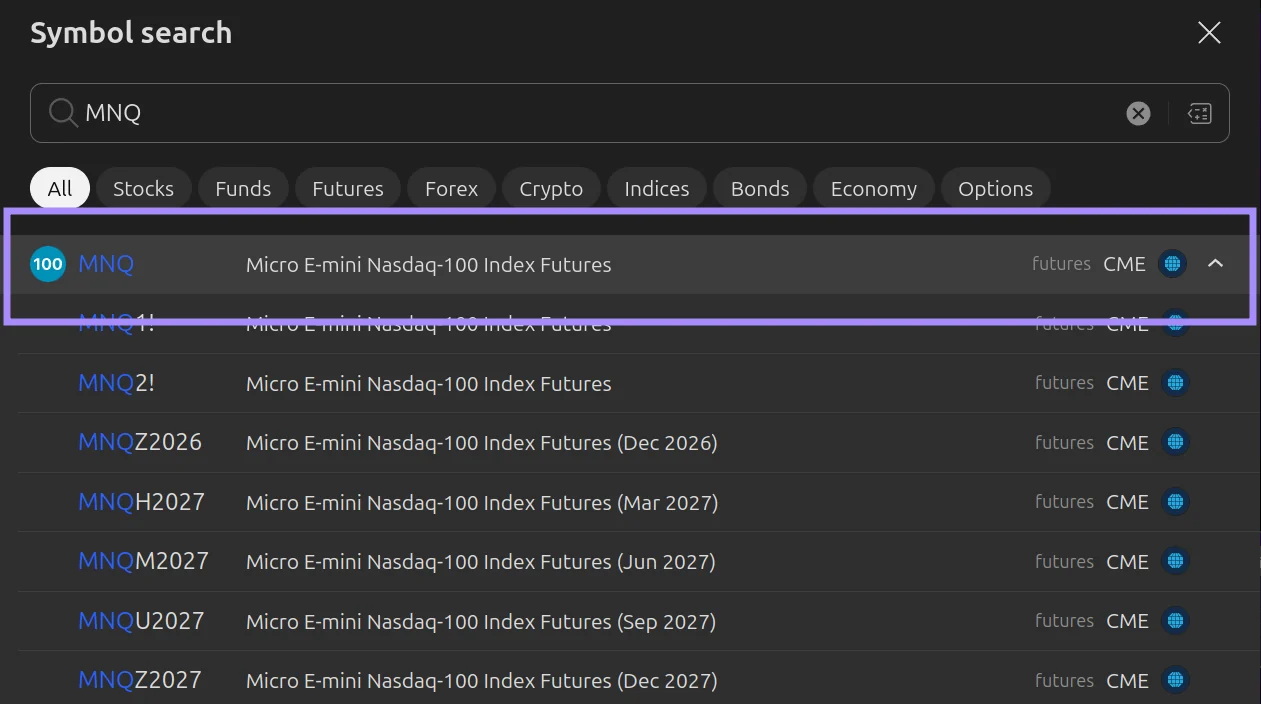
You can run the indicator on any exchange chart: it will adapt to the available data. However, testing was done on specific sources: TVC, MNQ, and Binance spot. The strategies perform most accurately on these, so it's best to choose them.
For Nasdaq 100 E-mini mode, "Micro E-mini Nasdaq-100 CME" is the preferred choice.
Step 2 – select Nasdaq 100 E-mini mode#
Open the indicator settings and select Nasdaq 100 E-mini mode.
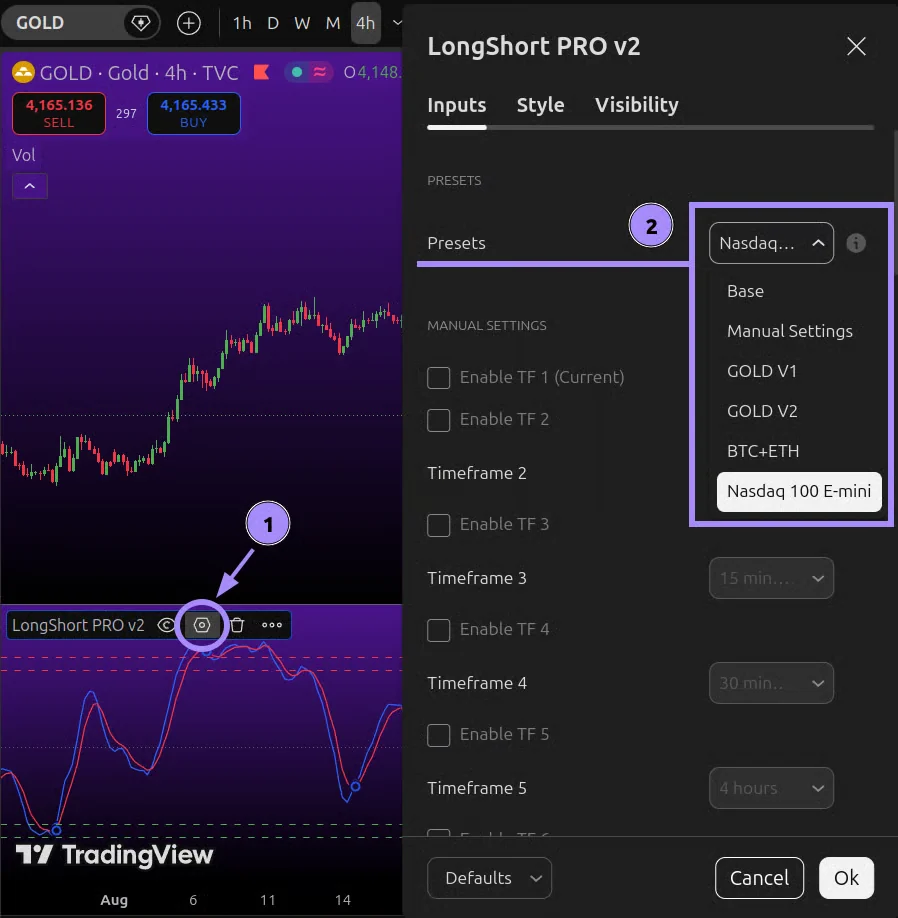
This mode has been tested and works only on the 30-minute timeframe. On other timeframes, signals will not be displayed on the chart, and you will see a hint in the indicator pane.