Setting up filters
Filters work only in Manual Settings mode. In Base, GOLD V1, GOLD V2, BTC+ETH, and Nasdaq 100 E-mini, filters are not applied; their settings become grayed out and inactive.
Signal Settings#
This block defines which signals the indicator accepts and how strict the conditions must be. It applies in Manual Settings mode: in Base, GOLD V1 or GOLD V2, BTC+ETH and Nasdaq 100 E-mini the levels and direction are set by built-in rules.
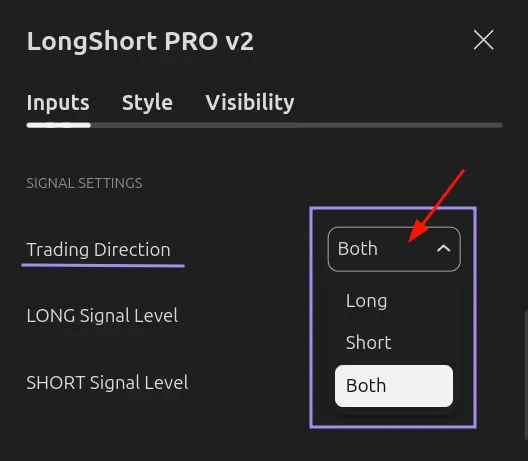
"Trading Direction"
Direction selection: Long allows LONG signals only, Short allows SHORT only, Both allows both directions.
"LONG Signal Level - 20"
The threshold for LONG. A signal is possible when K is strictly below this value on all enabled timeframes. Lowering the threshold (for example, to 15) narrows the allowed zone and makes the condition stricter.
"SHORT Signal Level - 80"
The threshold for SHORT. A signal is possible when K is strictly above this value on all enabled timeframes. Raising the threshold (for example, to 85) narrows the allowed zone and makes the condition stricter.
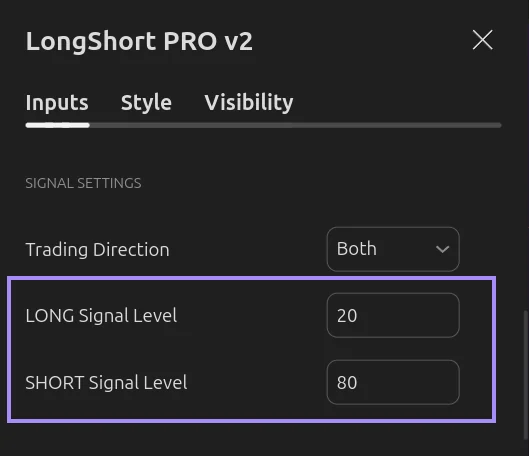
LONG Signal Level must always be lower than SHORT Signal Level, even if only one direction is selected.
Filters determine when the indicator is allowed to accept new signals. They look at the K value on the higher timeframe (Filter Timeframe) and allow or block entries depending on its position. The filter itself does not create an entry and does not close an open model trade: a signal still requires the conditions of the selected timeframes.
The two filters cannot be enabled at the same time. To trade in both directions, use the Direction Filter; for one direction, use the Global Filter.
Direction Filter#
What this filter is for
To avoid taking signals against the current phase of the higher timeframe when you trade in both directions.
The Direction Filter can be used if Trading Direction = Both: it determines which directions are currently allowed (LONG only, both, or SHORT only) based on the position and movement of K on the higher timeframe.
When a single direction, Long or Short, is selected, the filter is not used.
To use the Direction Filter:
- Trading Direction must be set to Both.
- Check Enable Direction Filter.
Filter settings:
"Filter Timeframe" (1h by default).
Specifies the timeframe whose K the filter uses to determine the state.
You do not need to add it to the tracked timeframes; this is a separate check.
"Use Confirmed Filter Candle" (enabled by default).
Uses the completed filter candle.
When disabled, the forming value is used, and the state may change before the candle closes. For your first look, leave it enabled.
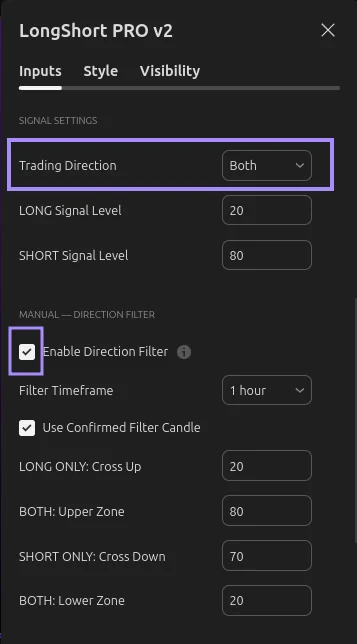
How the filter behaves during movement (default values):
- K rises through 20: LONG ONLY turns on.
- K reaches 80: BOTH.
- K falls through 70: SHORT ONLY.
- K drops to 20: BOTH.
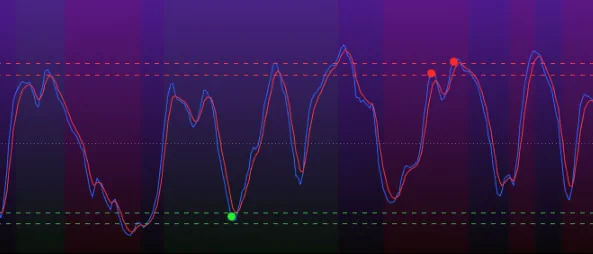
In the indicator pane, a green background means LONG ONLY, red means SHORT ONLY, and gray means BOTH. The backgrounds are available only in Manual Settings mode; you can change the color and transparency in the settings on the "Style" tab.
Global Filter#
What this filter is for
To take signals in one direction only within a selected period.
The Global Filter allows or blocks new signals in one direction depending on K on the higher timeframe. It is available when Trading Direction = Long or Short and does not work at the same time as the Direction Filter.
To use the Global Filter:
- Trading Direction must be set to Long or Short.
- Check Enable Global Trade Filter.
When Trading Direction = Long or Short – Direction Filter settings become unavailable.
Filter settings:
"Filter Timeframe" (1 week by default).
The timeframe used to check start and stop. Less frequent candles produce less frequent events, but this does not guarantee a better result.
"Start Condition" and "Start Level" (Cross Up, 30 by default).
The crossing direction and level after which new signals are allowed.
"Stop Condition" and "Stop Level" (Cross Down, 50 by default).
The crossing direction and level after which new signals are blocked.
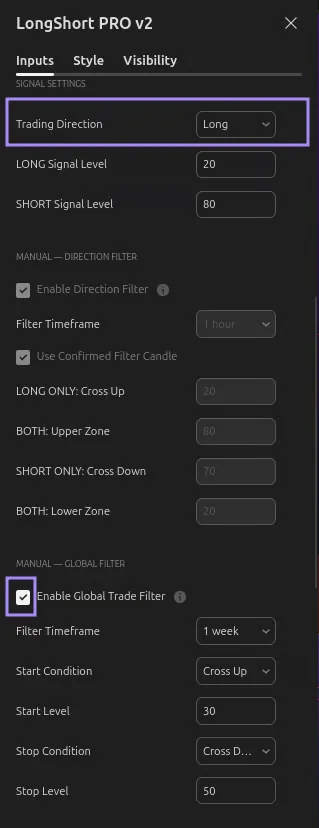
After the start, the model accepts suitable signals until the stop event. If start and stop happen at the same time, the stop takes priority.
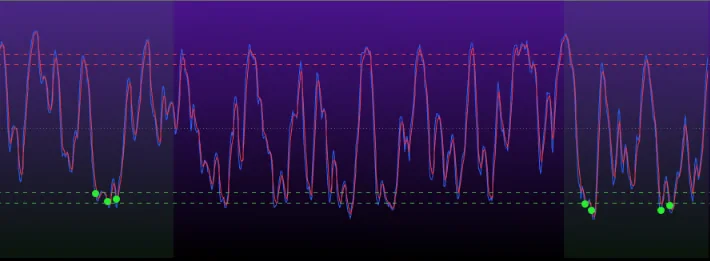
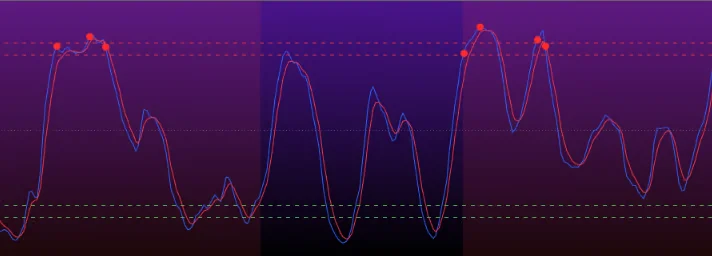
The allowed zone is marked with a green background for Long or red for Short.
If there is no background, the zone is not active – signals will not appear.
The Stop Condition blocks new entries but is not a stop loss and does not close an open model trade.
The Global Filter does not have a confirmed candle switch. While its timeframe's candle is forming, the state may change, and when you reload the chart, the historical display may differ.